EPM

Meta Data Management in Data Management for PBCS/EPBCS

In the December patch release for PBCS and EPBCS functionality has been introduced to allow for Metadata builds using Data Management. This is a wonderful addition to our tool box.
It is pretty straight forward to use.
Here is basic run down.
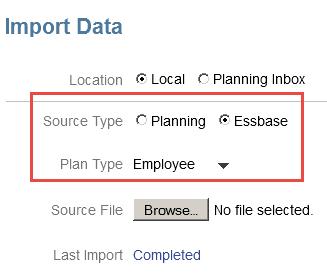
Loading a flat file to build a hierarchy:

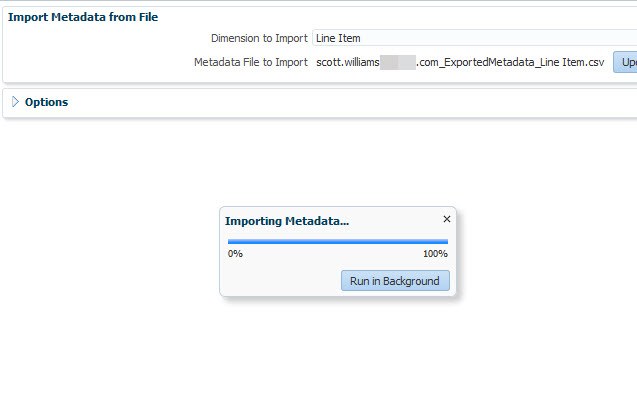
Image1

I am going to add a new sub hierarchy to the Entity dimension.
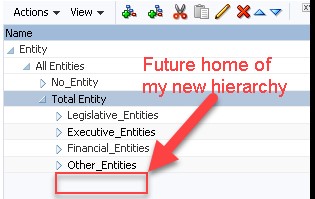
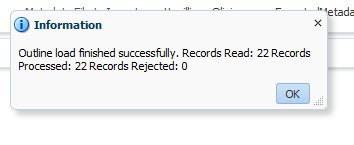
Image2

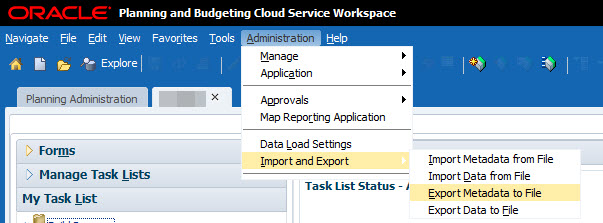
Navigate to Data Management
(By the way I heared a rumor that the Data Management GUI is being written to work through the Simplified Interface. So, it would accessible through a Card or Cluster. Also heard Oracle may be consolidating the Job Consoles for planning and DM)

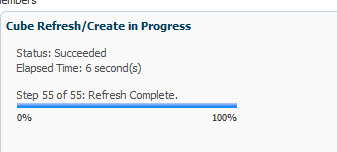
Image3

There is a new option under the Add menu in the Target Application.

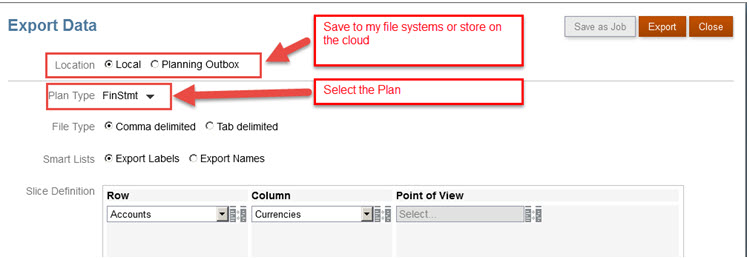
Image4

The Prefix is optional, but is helpful since the list displays in alphabetical order.

Image5

The Dimensions show up. Also in case you noticed, now Smartlist can be built using Data Management.

Image6

I am building a hierarchy in the Entity dimension

If you start looking through all the dimensions you will notice on thing in common.
For every dimension:
Alias: Default = ICP
The dimension name = ACCOUNT (in my screenshot Entity=ACCOUNT)
Parent = “ENTITY”
Don’t change the default values for these three!!!

Image7

Select the other properties you want to load.
I selected Data Storage and assigned UD2 as the value for Data Table Column Name.
Next move on to Import Format

Image8

File Type must be set to “Delimited – All Data Type”
File Delimiter – select from the drop down.
I mapped the columns to my file:
Alias is in column 4 and the Target is “Alias: Default”
I leave blanks for Data
Storage is not in my file but I map it to column 1, so I can take care of it in mappings later on.
Entity is column 2 and the Target is “Entity” – which is the member
Parent is column 1 and the Target is “Parent”
Header – I am using the Target of Skip so Data Management will ignore the header row in my file. (Logic is skip row where value in column 2 = ‘Member’)

Image9

Next step would be to create the location:
Very straightforward.

Image10

Let’s move on to “Data Load Mapping”
My example is simple * to * mapping with the exception of storage.

Alias: Default Mapping
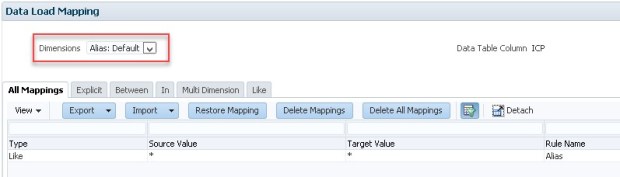
Image11

Although we are not loading data values (such as amounts), we still need to map Data.

Image12

Data Storage, if you recall, there is no value in my source file.  I want to map the value with logic. I use SQL to set the storage for the parent to “Dynamic Calc” and the Lv0 to “Never Share”.

Image13

Image14

I am very pleased to see that we can use logic to map properties that are not in the file. I have all types of ideas to complete Meta Data loads leveraging a data load files.

Entity(Member) Mapping * to *
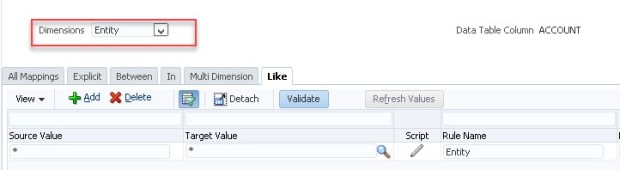
Image15

Parent Mapping * to *

Image17

Almost ready to load…now let’s create the rule.

Image18

Name it as you please – I chose Entity, since that is the dimension I am working with.
Category, is required, but has no bearing on the values you load since is it not data. You just need to remember which Category you use so you can see the values in the Workbench.
Select the Import Format
Select the File Name

Then move to the ‘Target Options’ tab
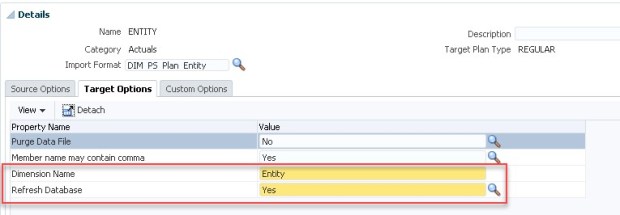
Image19

Enter the Dimension Name
Refresh Database Yes or No (if you are running multiple dimension builds you may want to wait and run the Refresh after the last load).

Time to Run it:
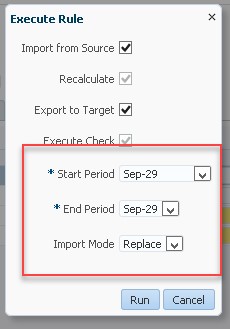
Image20

The start and end period are required, however since you are not loading data it is merely a bucket in Data Management.

Process Details look good:

Image21

Now lets look at the Workbench:
Couple of items:
1. The header row has been skipped (cool!)
2. Storage mapping has been applied (Jackpot!!!)

Image22

The Export was also successful, so let’s look at planning.

Image23

The new hierarchy looks good.

I set the Refresh to run, better check that too.

Image24

Success!!!!

I hope this is helpful and appreciate you taking a look.


ClearCube EPBCS/PBCS…I have been waiting on this for so long.

Hello All,

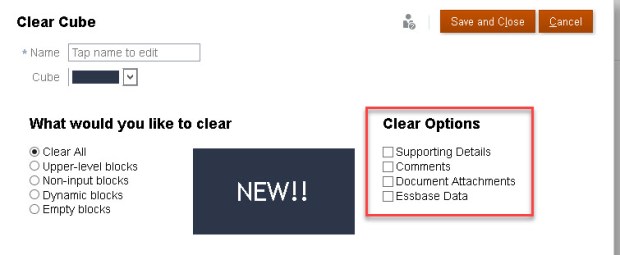
The July 2017 patch-set for EPBCS/PBCS includes new options to execute Clear Cube definitions/jobs.  Oracle has been slow to get the new features out.  The delay was driven by the need to add options to address the relational data as well as the Essbase data.

Now that the functionality has been updated/enabled what can we do?

We can use the REST APIs and EPMAutomate to call the Clear Cube job(s) externally…FINALLY!!!!

1st – The new look for the Clear Cube definition inside the Simplified Interface:

BEFORE:

ClearCubeOLD


AFTER:

ClearCube

2nd – An observation:

Sometimes all the Clear Options are available and sometimes they’re not. (Basic or Advanced)

ClearCubeDefinitionBasic


ClearCubeDefinitionAdvanced

3rd – Using EPMAutomate to run the Clear Cube Job

Install the EPMAutomate version 17.07.74 (or greater, depending on when you read this).

Per Oracle’s updated documentation:

clearcube

Deletes specific data from input and reporting cubes using the settings specified in a job of type clear cube. This command does not delete the application definition in the application’s relational tables. See Clearing Cubes in Administering Planning for Oracle Planning and Budgeting Cloud.

Usage: epmautomate clearcube JOB_NAME, where: JOB_NAME is the name of a job defined in the application.

Example: epmautomate clearcube ClearPlan1

The command is straight forward and works!!!

EPMAutomate

I hope this brief update was helpful.

RELEASE DATES:

  • Application to Test environments – July 07,2017
  • Application to Prod environments – July 21, 2017

/*****BTW if you are testing the patch updates and find an issue; be sure to include the word “Regression” in you SR.  This will help route your ticket to Oracle Product Development.*****/

Thanks for reading.

Scott Williams


Data Management transformations on text value loads to EPBCS/PBCS


Loading text data into Hyperion Planning has always had limits.  You had to leverage the format of the outline load utility, which had no transformation functionality.  Sure, you could use ODI to do amazing transformations, but were limited on automation unless you had purchased the full use license.

Data Management for PBCS and EPBCS was enhanced in late summer 2016 to facilitate text loads.  This enhancement simplified the file requirements for the IT department and put some control in the hands of the system administrators.

There are excellent blogs out there that show the end to end process for loading text values using Data Management.

I have not seen a blog that shows you how to transform the text values.  Although, I did not look very hard.  That is what I will cover in this brief blog.

Scenario:

I have a Position cube.  Attributes are assigned to each position. I am going to focus on Job Code which is a Smart List and assigned to each position.

The Job Code Smart List is mapped to a dimension in an ASO cube.

When we run our data map, the Smart List assignment in the Position cube is mapped to the corresponding member of the Job Code dimension in the ASO cube.

My goal is to add a prefix to the Job Code and shorten the name during the position detail file load.

  • Why do I want to do that?
    • The job code values overlap with the member names in my Program dimension, so I want to keep everything unique and clear.

Example: Change Job Code ‘101159 Assistant to the Mayor’ to ‘JC_101159’.

I will use Data Management to load the position detail flat file and transform the values in the field ‘Job_Code_Input’.

Source File:

SOURCEFILE.gif

Data Management :

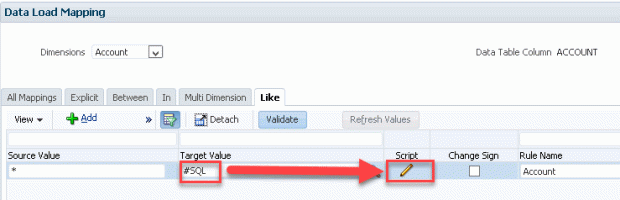
The key is using the option to write your own SQL (#SQL – in this context this is not a Twitter reference).

SQLRULE

About the SQL below… DATA is the source data field in the Data Management table and DATAX is the target data field.

I am using the Account mapping as a pipeline to the data fields.   I still need to have a valid map for Account.

I mapped accounts using this statement ‘CASE WHEN 1=1 THEN ACCOUNT END’ (there are other ways to do this same mapping).

Once Account is mapped, I am free to transform the data.

DATAX =
CASE
WHEN ACCOUNT = ‘Job_Code_Input’ THEN SUBSTR(CONCAT(‘JC_’,DATA),0,9)
ELSE DATA
END

The CASE Statement allows me to find the specific account to transform.

I use the Sub-string and Concatenation syntax to transform the data for the account defined in the CASE Statement.

SQL

I define all other mappings and execute my load rule…

Here are the results per the workbench:

The Target Data has been transformed.

Workbench

This is a basic example.  The key is knowing where to write the SQL and the field names.

I hope this was helpful as a starting point and you can build from this.

As always feedback, alternative methods are welcome.

Regards,

Scott Williams

P.S. I remove Case Statement for the ACCOUNT and use the SQL below and the result is the same.

ACCOUNT,
DATAX =
CASE
WHEN ACCOUNT = ‘Job_Code_Input’ THEN SUBSTR(CONCAT(‘JC_’,DATA),0,9)
ELSE DATA
END

PBCS – New Financial Reporting Web Studio

——Update February 18, 2016—————-

I received some additional information related to this post for the new FR Web Studio.

As stated approximately 85% of the functionality has been moved to the new Web client.
Which begs the question, what is the remaining 15%.
Here you go:
The following functionality is not currently available in FR Web Studio:
•Related content
•Conditional formatting and suppression
•Auto Calculations
•Sorting
•Row/Column templates, saved/linked objects
•Edit multiple reports at the same time
•‘Same As’ member selection function
•Grid Format Cell > Replace
The plan is to move that functionality into the new studio sometime in Summer 2016.
The  FR Studio Client is planned to be available for a few months after the Summer release.  FR reports in the web and Windows Studio can be updated interchangeably, there is no migration or conversion, as the report definition format stays the same.

———–End of update——————–


Hello,

It has been awhile since I posted anything.  I have some drafts, but need more hands on examples to finish them.

In the meantime, I am re-posting details Oracle just sent out for the March PBCS release.  I know that may not be helpful.  Normally I at least like to validate and tinker with the product rather than regurgitating public knowledge.  Not this time however, perhaps some of you have not heard about this or read your email(s).

Per Oracle in regards to reports for PBCS:

***Update although the statement from Oracle says “March update” they also state “The next monthly update for your service will be applied to your test instance on Friday, February 5 and to your production instance on Friday, February 19.” ****

“New Financial Reporting Web Studio

The March update of the service will include the new Financial Reporting Web Studio. The Financial Reporting Web Studio is a web-based report authoring solution that has a similar look and feel as the current Windows-based Financial Reporting Studio. Additionally, it incorporates some usability improvements and report design paradigms. This release includes about 85% of the functionality currently available in the Windows Financial Reporting Studio.

The existing Windows Financial Reporting Studio will still be available. Because the report definitions remain the same, you can edit existing reports using the Windows or web version of the Financial Reporting Studio.”

So take it for what it is worth.  I have not had a chance to validate the new functionality for Financial Reporting Studio.  However, considering in a 10-minute span last week I lost my connection to PBCS in the reporting studio client 3 times, I am hoping for improvement.


Here is the URL for the documentation for the web based client:

http://www.oracle.com/technetwork/middleware/bi-foundation/fr-webstudio-2874377.pdf


Also here is the screenshot I grabbed from the documentation…gives you a little idea of the look and feel.

HFR_WEB

Also per Oracle:

“Upgraded Financial Report Rendering Engine

Starting with the March update of the service, Financial Reporting will use an upgraded charting engine to improve report visualization. Because of the inherent differences between the old and new rendering engines, this upgrade will have some impact on the rendered chart output and behavior. While Oracle has focused on maintaining the existing charting functionality, chart outputs from the upgraded engine may differ from those created using the old engine. “

Hopefully I will get something substantial out to you very soon.

Regards,

Scott Williams

Oracle PBCS – EPMAutomate v15.08 Encryption now available

Hello all,

Quick update.

EPMAutomate version 15.08 includes password encryption.

You may need to upgrade, but it is worth it.

Run the command to encrypt the password and store it in a file.

Update your script(s) by replacing the hard-coded password or the variable to point to the password file (path and file).

Syntax per Oracle documentation:

epmautomate encrypt P@ssword1 myKey C:\mySecuredir\password.epw

It actually works!!

Encrypt

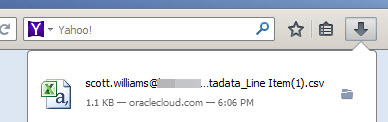
Screenshot with password reference in a script:

Ecrypt1

Check the URL for details:

http://docs.oracle.com/cloud/latest/pbcs_common/CSPGS/apbs05s01.html

Regards,

Scott Williams